PSippr — User Guide
PSippr is a peer-to-peer social network for everything around you — people, businesses, doctors, lawyers, food, taxis, jobs and emergency help. It is not a dating app: the heart button and preferences are just one of many features. It differs from other apps in one big way: it has no central server that stores profiles, messages or photos. Your profile, photos and messages travel directly between phones and computers, encrypted end to end. Nothing is stored in any cloud — everything stays on your device and the devices of people you talk to.
The app runs on Android and on desktop (Linux, Windows) and keeps itself up to date — when a new version is out, it offers the update right in the app.
1. First start
When you open PSippr for the first time:
- Age check (18+). Enter your date of birth. It never leaves your device — it is only used to confirm you are an adult. The app is strictly 18+.
- Create your profile. Pick a name, age and a profile photo. You can add more photos, a short video, bio, height/weight and what you are looking for (chat, dates, friends, fun, relationship, right now). On Android you can prefill the name and photo from your Google account with one tap.
- That's it — no registration, no e-mail, no phone number. Your profile is your identity.
Trying the app — Demo
The welcome screen has a Demo button. Pick how you want to try the app — Regular user, Promo or TIP — and PSippr opens with a pre-filled profile marked DEMO. No profile of your own is created.
A demo account is limited on purpose:
- Other people do not see it. Regular and Promo users never see a demo profile in Nearby or on the walls, and the app does not send them its posts. Only TIP accounts see demo profiles.
- You cannot save contacts, download anything or take screenshots.
- You can report or block only other demo accounts.
- Everything you do in demo is erased when the app closes.
2. Getting around — the eight tabs
The bar at the bottom of the screen has eight tabs. They show only icons; the selected tab expands and shows its name (the tabs inside Settings and the small sub-tabs work the same way):
- Nearby — the grid of people around you.
- Contacts — favorites, followers, blocked people and the community spam list.
- Albums — your photo and video albums.
- Incoming — everything people send you: visitors, hearts, likes and messages. A red dot on the icon means something new is waiting.
- Wall — the public feed visible to everyone around, plus your private timeline for approved followers.
- Video chats — who is live in a group video chat right now; a button starts your own.
- POIs — businesses and places near you.
- Doctor — businesses with a medical practice (coming soon).
- Emergency help — charity: help for people in real need (coming soon).
- Holiday — holiday packages including flights (coming soon).
- Connected — My devices (the list of linked devices as in Settings, "+" shows how to connect another) / Other / Grants (coming soon).
- Lost & found — (coming soon).
- Guides — city and travel guides (coming soon).
- Tab setup — no tab of its own: swipe past the last tab to open the order and visibility of tabs, the same as Settings → Tabs.
A new user starts with Nearby, Public, Incoming, Albums, Contacts and Connected only; the rest can be enabled in Settings → Tabs or by swiping past the last tab.
The system back button always brings you back to Nearby first, and only then closes the app.
3. Nearby — people around you
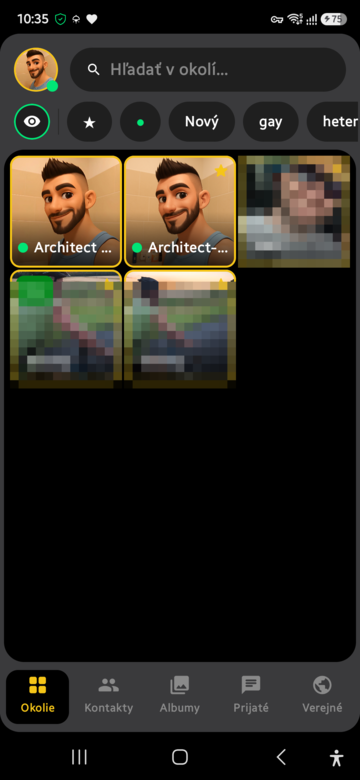
The Nearby tab is the main screen: a grid of people around you, closest first. Each tile shows the profile photo, name, an online dot and a New badge for fresh profiles.
The colored dot tells you the person's status:
- green — online right now,
- yellow — online, but idle (no activity for more than about 2 minutes),
- no dot — offline; open the profile to see when they were last seen,
- red — incognito (you see it on your own tile while incognito is on; VIP members see it on incognito users).
At the top you find:
- Search — find people by name.
- Refresh button — desktop and web only, where you cannot pull the grid down; on mobile you refresh the surroundings with that pull gesture.
- Content switch — the first round button in the filter row. See below.
- Filters — favorites (★), online only (●), new profiles. Filters never remove anyone: what matches moves to the top, the rest follows underneath, both ordered by distance.
- Share button — send the app itself to a friend, right from your phone (the button turns yellow for a moment while the app copy is prepared).
- Eye icon — incognito mode. When on, you browse invisibly: only VIP members can see you in their grid, and your own notifications become silent — no sounds or pop-ups, like a do-not-disturb mode. (Incognito is part of the Extra bonus pack / VIP.)
The content switch — what the grid shows
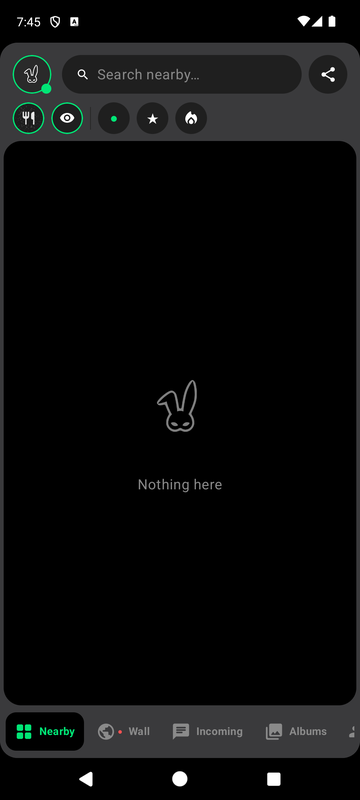
The round button at the start of the filter row switches what the grid is made of. Every tap moves one step further and the icon changes with it:
| Icon | Grid shows |
|---|---|
| person | People — everyone around you (the default) |
| fork & knife | Restaurants — places that ticked "We serve food" |
| storefront | Businesses — every business around you |
| taxi | Rides — drivers who switched on "I am a taxi driver" |
| stethoscope | Doctors — businesses that ticked "I am a doctor" |
| gavel | Lawyers — businesses that ticked "I am a lawyer" |
The switch is not remembered: every start of the app begins at People.
In the four business modes the tile stops being a person and becomes the business — it carries the business name and the main business photo, not the owner's nickname and face. Two things follow from that:
- the status dot shows the opening hours, not whether the owner happens to be online,
- tapping the tile opens the business detail (photos, address, opening hours, products, staff), not the owner's personal profile.
In People and Rides mode a tile is a person again and tapping it opens their profile.
Matching of sexual preferences. Nobody is ever hidden from the grid. But if someone's sexual preferences have nothing in common with yours, their preferences and their private albums are hidden from you (and yours from them) — so nobody bothers anyone, while people still see each other. If either side left preferences empty or hides them, nothing is hidden. Promo / VIP members always see everything.
Your own tile is in the grid too, so you always see how others see you.
4. Viewing someone's profile
Tap a tile to open the person's profile: photos, videos, bio, and the music they are listening to right now (if they enabled it in settings). Swiping left or right switches to the previous / next person from the grid.
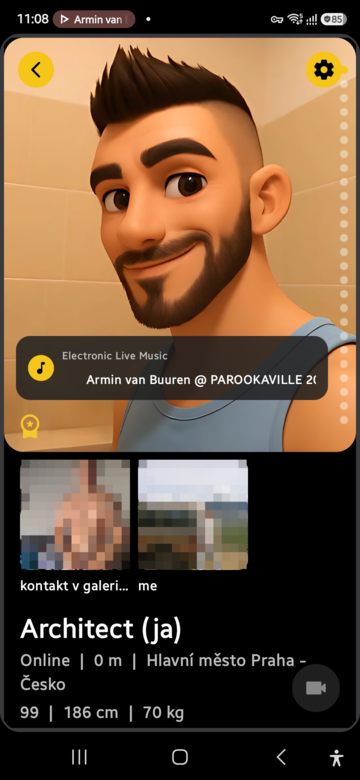
The music strip on top of a profile shows what the person is playing right now in a player app (NewPipe for example) — tap it to open the same song yourself.
In the fullscreen photo viewer you can:
- like a photo or video with the thumbs-up button — the owner gets notified,
- save the photo or video to your phone gallery with the save button,
- zoom with two fingers or double-tap.
Below the photos there is a Contacts section (icons of the social networks the person filled in — Instagram, WhatsApp, Facebook, X, TikTok, Revolut revtag — that one opens "Send money" right in Revolut) and below it the Timeline with two tabs:
- Public — their last 10 public posts, with a More… button that opens the full history.
- Private — a private timeline visible only to approved followers. Tap Request to follow to send a request; the owner approves or declines it in Contacts → Followers. Once approved, the private posts show up right here and you get a notification for every new one.
Private and locked albums show up as blurred tiles — tap one to ask for access; the owner decides whom to let in.
More things you can do on a profile:
- Private note — write a note about the person; only you can see it.
- Star — add them to your favorites.
- Block — when blocking you pick a reason: harassing, spam or *fake profile*. This is also how you report spammers — see the Contacts chapter.
- Map — opens a map with the person's approximate area only: their city district, or just their city when you are in different cities. Never a street address.
- Bolt — orders a ride to the person. Their exact address is shared only after they approve your request; until then Bolt cannot be opened and no address ever leaves their device. When the app does not know your exact location (typically on desktop, where the location is estimated from your IP address), it asks for a pickup location — it prefills the estimate and you can replace it with a city or
lat,lng. That choice applies to that one ride only.
5. Hearts — the match handshake
The heart is a simple two-state switch:
- tap it once to send interest — the heart fills up,
- tap it again to take the interest back — the heart returns to an outline.
If the other person sends a heart back, you have a match — both of you see a full heart.
In settings you can turn on "Chat only after mutual heart" — then nobody can write to you until you both exchanged hearts, and voice / video calls also unlock only after the match. A revoked heart locks the chat again.
6. Contacts — favorites, blocked, spam
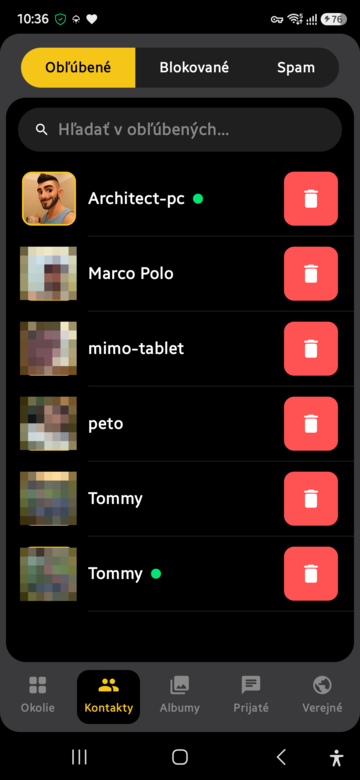
The Contacts tab has these lists:
- Favorites — people you starred. They stay here even when they go offline.
- Followers — requests to follow your private timeline (approve / decline) and the list of approved followers (remove). A new request arrives as a notification and in the yellow banner; tapping it takes you straight to the request.
- Blocked — people you blocked. A blocked person cannot message or call you and does not see when you are online.
- Spam — the community protection list. Anyone marked as spam or *fake profile* shows up in everyone's Spam tab right after the first report — with a dashed red frame (1–2 reports), and the same in Nearby. From three different people (or after a promo verdict) the frame is solid and the person can only message promo users. This is how the community warns each other about spammers, fakes and harassers. Removing someone from the Spam list is a VIP/promo privilege — so spammers cannot clean themselves.
- Food / Venues (main tabs) — nearby businesses created in Settings → Venue: Food lists those with "We offer food" on, Venues the rest; search by name and address on top, tapping opens the venue profile (its own photos, address, company/VAT ID, phone, e‑mail, website, opening hours, Message). In POIs the venue photo opens the same profile.
- Automatic block — whoever keeps repeating the same text in the group chat or in messages gets three warnings; on the next repeat the app itself puts the account on the spam list for 30 days (applies to everyone, promo and TIP included). The block expires by itself after 30 days.
- Spam card for promo — as soon as someone lands on the spam list (by reports or by the automatic block), every clean promo user within 500 m gets a card in chat (like the taxi one); if none is in range, the nearest one gets it. Promo taps Cancel on the card and the person is off the list with the report count reset. A promo verdict itself counts immediately as three reports. A promo who is on the spam list gets no card and must be cleared by another promo.
All lists have search.
7. Albums
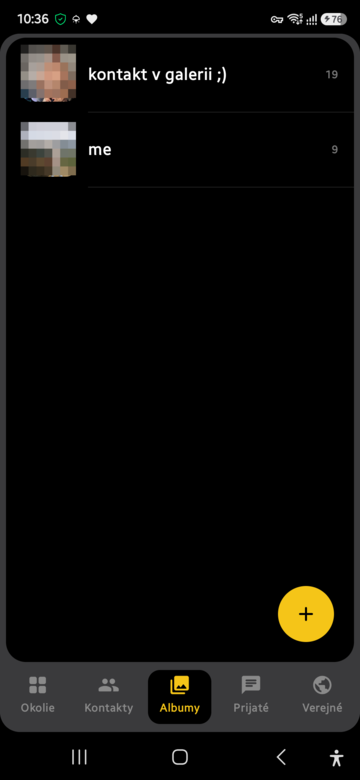
The Albums tab holds your photo and video albums:
- Public albums — everyone who opens your profile can browse them.
- Private albums — only for you; you can still send them in chat.
- Locked (private) albums — others only see a blurred silhouette. To see the content they must ask for access and you decide whom to let in.
Handy gestures in the album list:
- long-press an album without moving — a menu opens: delete the album, or move it between private and public,
- long-press and drag — reorder your albums,
- inside an album, long-press and drag reorders the photos and videos the same way.
More about locked albums:
- The app has a built-in, on-device NSFW detector: explicit photos are not allowed in the main profile gallery, and an album with explicit content is automatically marked as private. Nothing is sent anywhere for this check — it runs completely on your device.
- "Hide after viewing" — the album locks again after the person has seen it once. Promo / VIP viewers can open it again.
- VIP members can open private albums of regular users without asking; between two VIP members (and between regular users) the access request still applies.
You can also share photos from your phone gallery straight into PSippr (Share → PSippr). The app creates an album named with the current date and time — you can rename it before saving — and asks whether to keep it just in Albums or also post it to Public.
8. Incoming — everything people send you
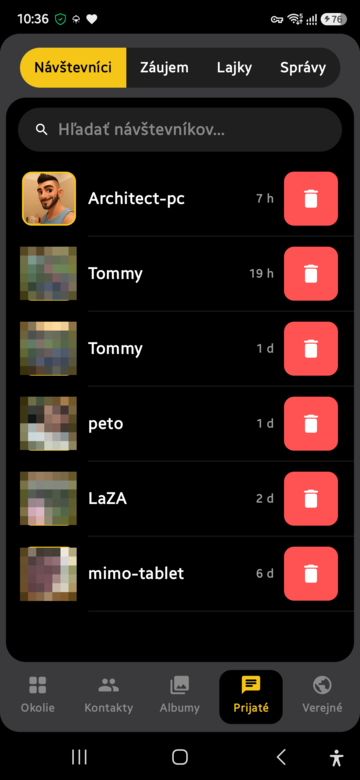
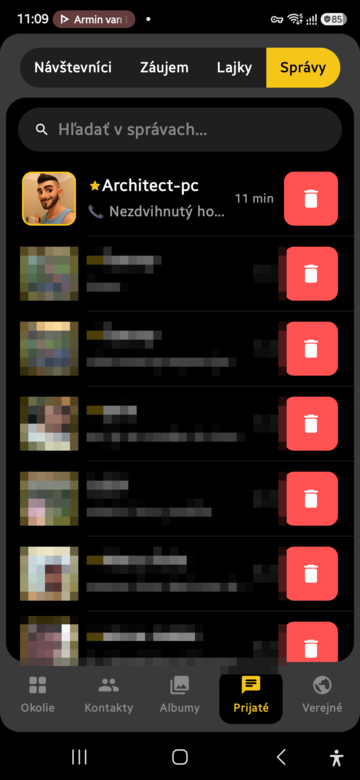
The Incoming tab collects everything people send you, in four sub-tabs:
- Visitors — who viewed your profile and when.
- Interests — people who sent you a heart or asked for access to your locked album.
- Likes — who liked your photos and posts.
- Messages — your conversations.
A red dot on a sub-tab (and on the Incoming icon itself) means something unread. Opening the tab jumps straight to the sub-tab with news — unread messages first.
9. Chat
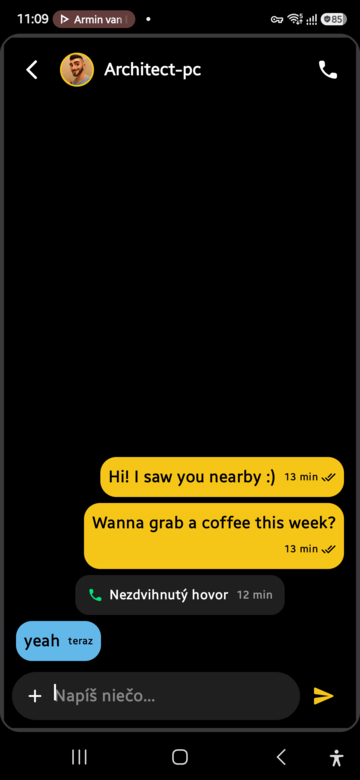
What you can send in a conversation (the + button next to the text field):
- text and emoji,
- photos and videos — either from your device, or **take a photo right away** with the camera (the photo is also saved to your phone gallery),
- whole albums from your Albums tab,
- any file (documents, archives…) up to 50 MB — the fifth button in the row; it arrives as a chip with the file name and size, tap it to save the file to Downloads (Android and desktop; iOS and web cannot pick or save files yet). Both sides need app version 1.0.223 or newer,
- links — a pasted link turns into a preview card with title, picture and the site's icon and address, so you always know where it leads; tapping it opens the page.
Working with messages:
- Double-tap a message to open the reaction picker with 8 emoji (👍 ❤️ 😂 😮 😢 🙏 🔥 👎). The reaction appears as a small chip under the bubble. Pick the same emoji again to remove your reaction.
- Swipe a message to the right to reply to it — the reply shows the quoted original, just like in other messengers.
- Long-press a message to copy its text. A small bubble appears above the text field — tap it to paste the text into your draft.
- When a message contains a phone number, the app offers Call and Save contact buttons right under it (Android and iOS). A saved contact gets the name, photo, last known city as its address, preferences and Looking for as groups (labels), and a link back into the app as its website — tapping it opens PSippr straight on that profile. Contacts live in the app's own space: uninstall PSippr and they go with it.
Message ticks show when a message was delivered, and missed calls show up in the conversation too. If someone new wants to talk to you, the app first shows a chat request you can accept or decline.
10. Calls
You can make voice and video calls directly in the app — again, no server involved; the call goes straight between devices, and thanks to a built-in tunnel it works even when you are each on a different network. Calls with several people at once are part of the Multi video chat paid feature.
- An incoming call lights up the screen in yellow like a normal phone call, and while calling you hear a classic ringing tone.
- During a call you can switch the sound between **speaker, earpiece and Bluetooth**.
- If the other person is already in a call, you hear the busy tone; if they are offline, the app tells you immediately that they are unavailable.
- You can disable incoming calls entirely in settings.
- With "Chat only after mutual heart" turned on, calls are possible only after a match.
11. Wall — public and private timeline
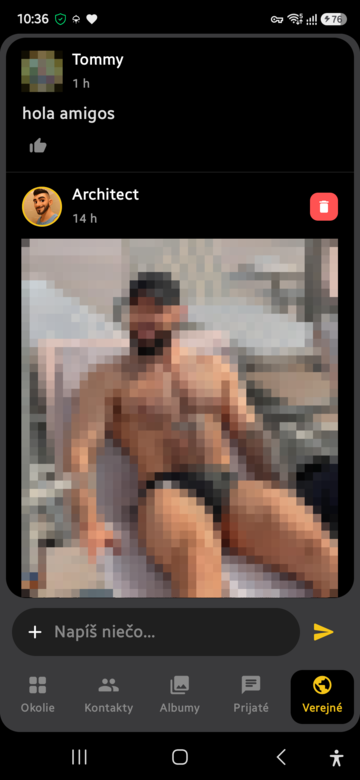
The Wall tab has two cards. Public is a feed visible to everyone around: short posts with text, photos, videos or whole albums. The + button next to the text field attaches them — you can also take a photo with the camera on the spot (it is saved to your phone gallery too). Links turn into preview cards with the site's icon and address, and really large videos are rejected (a public post goes to everyone nearby).
Every post offers:
- Like — with a visible count.
- Don't like — a thumbs-down with a count. It is completely anonymous: the author sees only the number, never who disliked, and the post stays visible for everyone.
- Share — passes the post to other apps on your device; the button turns yellow for a moment while the share window opens.
Posts disappear after 24 hours — the feed is meant to be "what's happening now". Your own last posts stay visible on your profile as your timeline (you can turn timeline history off in settings, then your posts vanish after 24 hours like everything else). Only you can delete your own posts.
The Private card looks and works exactly like the wall, but the posts are seen only by people you approved as followers (Contacts → Followers). They never spread around — every follower fetches them directly from you. Followers get a notification for each of your posts (private and public) and when you start a video chat. When you check in at a place (POIs → Check in), a post "I'm at …" is written to your private timeline automatically, and "I left …" when you leave.
The Video chats tab lists people who are live in a group video chat — tap Join to enter, or the camera button in the bottom-right corner to start your own (requires the Multi video chat subscription).
On Android there is also a home-screen widget showing the people around and the latest global message. Tapping a tile opens that person's profile directly; the bar at the bottom opens the app on the Wall tab with the composer ready.
12. POIs — places around you
The POIs tab lists businesses and places around you — bars, clubs, venues — sorted by distance. Each row shows the place's photo, how far it is and how many people are at the place right now.
- Tapping the photo opens the venue's profile.
- VIP / promo members can tap the row to see who is there — the list of people within 500 m of the place; tapping a person opens their profile.
Do you run a venue? Turn on "We're a venue (POI)" in Settings — your profile then appears in everyone's POIs tab, and ride requests (Bolt) to your place are approved automatically, so guests always find you.
Checking in at a venue. Once you are within 500 m of a venue that has been standing in its place for at least an hour, the app asks whether you want to be listed under "who is here". If several venues are in range (say two in one building) it asks about each one and you can be at all of them at once. A venue owner is listed at their own venue automatically. Ticking "always here" is remembered per venue; a check-in expires by itself after an hour and when you put the app away. Manage it all in POIs → Grants.
13. Guides
The Guides tab is being prepared — city and travel guides will appear here in a future update. For now it is empty.
14. Your profile — the Me tab
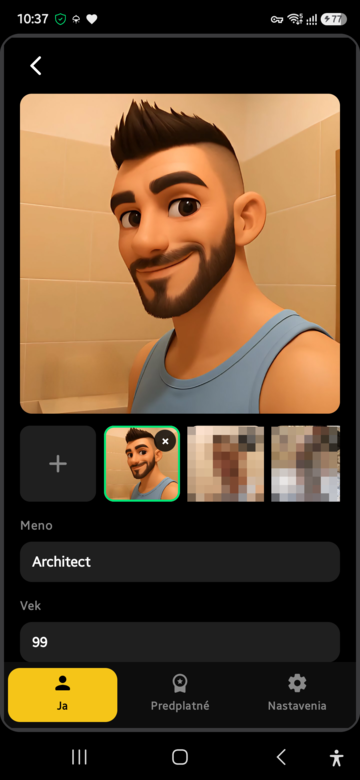
Tap your avatar (top-left corner of Nearby) to open your own profile. The tabs at the top are: Me (edit profile), Subscriptions, Settings, Help and About — icons only, the selected one shows its name.
Editing in the Me tab:
- Photo gallery — the first photo is your profile photo and has a green border. Tap another photo to make it the main one. Long-press and drag to reorder photos and videos. Explicit photos are not allowed here (the on-device check tells you right away).
- Sexual preference and Looking for — tap the chips to select, and long-press-drag to order them the way you want.
- Verified user — on Android you can verify yourself through the Cryptolut app; owning a web3 domain gives you the Verified user badge. Without a domain the app offers the purchase (web3dns.org) — buying one also gives you the promo subscription free for a year.
15. Settings
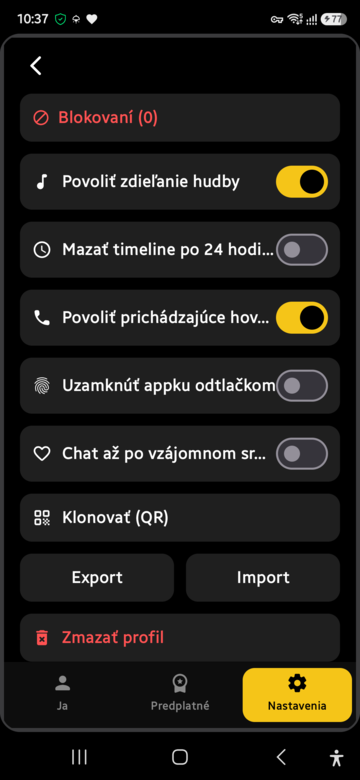
Settings at a glance:
| Setting | What it does |
|---|---|
| Blocked | shortcut to your blocked list |
| Enable music sharing | the music you are currently listening to is shown on your profile |
| Delete timeline after 24 h | your public posts do not stay on your profile |
| Hide my location | others see no distance or city for you |
| Hide preferences | your sexual preference and "looking for" are not shown to anyone |
| Manual location (desktop) | type a city name or "lat,lng" — it overrides the automatic location, which can be off by far on a computer |
| Venue tab — We are a restaurant / venue | turns on venue mode (a restaurant is automatically a POI and follows the same rules as any POI — paying accounts only) and adds business details to your profile: its own photos (like a second profile — shown only in POIs and in the Venue section, never as your photo in Nearby), name, address (the "Use current location" button fills in street and number), mandatory company ID and VAT ID, phone, website, opening hours and description; phone and website are tappable on the profile. The venue POI stands at its address (not where the owner's phone happens to be). Promote for a day (3 €) publishes the business as a one-day top post on the wall (details + main photo, pinned on top for everyone, gone after 24 h); the next promotion is possible after a week |
| Allow incoming calls | turn calls off entirely if you want peace |
| Stay reachable in background (iPhone) | the app keeps running after you close it, so messages and calls arrive right away; it needs the "Always" location permission and uses more battery |
| Lock app with biometrics | fingerprint / face lock on app start (if your device supports it) |
| Require mutual heart to chat | nobody writes you without a match |
| Clone (QR) | move your profile to another device by scanning a QR code |
| Export / Import | backup your whole profile to a file (zip) and restore it |
| Delete profile | wipes everything and starts fresh — cannot be undone |
The app speaks 20 languages and follows your system language.
16. Help & About
- Help — the full user manual (this document) opens as a PDF right in the app, in English or Czech according to your system language.
- About — the app logo with the author's photo, the version number, a clickable e-mail address (opens your mail app) and an Update button that checks for a new version and reinstalls the app on demand.
17. Updates
The app checks for new releases automatically — on every start and then every 15 minutes while you use it. When a newer version exists, an update dialog appears; one tap downloads and installs it. You can also force the check any time with the Update button in About.
If your version is too old, it must be updated before it can talk to the network — old, potentially insecure versions are rejected.
18. Privacy & security in short
- No server, no cloud. Data lives only on your device and travels encrypted directly to the people you talk to — the app needs no backend at all.
- Everything is signed. Profiles announce themselves with cryptographic signatures, so nobody can impersonate you.
- Your date of birth never leaves the device — the 18+ check is local.
- NSFW detection is on-device — photos are never uploaded for checking.
- Screenshots are blocked in the app (Android) so others cannot easily capture your photos and chats. Only promo / VIP members can take screenshots.
- Biometric lock — protect the app with your fingerprint or face if the device supports it.
- Backup is yours — Export / Import creates a single zip file fully under your control.
- Reinstalling keeps you unique. Devices recognize a reinstalled app and clean up the old duplicate profile automatically.
What the app knows about your location
Location is the one thing about you that leaves the device, so it gets its own section.
| Feature | What is actually sent | To whom |
|---|---|---|
| Nearby (who is around) | a coarse geohash only — a cell a few kilometres across, not a GPS point | everyone in range who is listening |
| Clubs and events | city-level location | nobody yet, the feature does not exist |
| Exact address (ride) | your real GPS position | one person you pick, and only after you confirm |
Consent is given per purpose, never as one blanket "I agree", and you can withdraw it in Settings at any time, as easily as you turned it on. The app keeps a local record of when you consented and to which version of the text — that record never leaves your device.
What withdrawing consent CANNOT do. PSippr has no server, so data sits on the devices of people you talked to. Withdrawing stops further sending, but nobody can delete a copy someone already received. The same is true of deleted messages and photos. That is the price of having no cloud — and it cuts both ways.
Country comes from your choice in settings, otherwise from the phone's language. Your IP address is never used for it. That also means anyone can switch it, so the app uses it to decide how it behaves, not as a security boundary, and it does not claim otherwise.
AI is off, and nothing of yours is processed unless you turn it on. Turning it off also deletes whatever was derived from your data.
19. Paid features & supporting the app
PSippr is free to use. Three extra features cost 5 € / month each:
| Feature | What you get |
|---|---|
| Multi video chat | video calls with several people |
| Custom albums | extra album features |
| Extra bonus pack | bonus features incl. incognito mode and seeing all preferences |
Payments run through Stripe payment links — a secure payment page opens in your browser (card, Google Pay and similar methods); PSippr never sees your card.
Web3 bonus: if you buy a web3 domain (web3dns.org), you get the promo subscription free for a whole year. Owning a domain also gives you the Verified user badge (verified through the Cryptolut app).
Supporting the app. Promo / VIP members pay nothing, so the Subscriptions tab shows them a support card instead: the Donate button opens a Stripe page where you choose your own amount. After a donation the app posts a public thank-you to the global feed on your behalf.
20. Promo code (VIP)
A promo code looks like PSVIP-XXXXX-XXXXX-XXXX and unlocks lifetime VIP: all paid features for free, incognito mode, screenshots allowed, seeing everything regardless of preference matching, special VIP rules for private albums, the "who is here" list at POIs and the right to remove people from the community Spam list.
How to apply one:
- Open your profile → Subscriptions tab.
- Type the code into the promo field and tap OK.
- Read the warning: a code is personal. **It works on one device only and each code can be used by exactly one person in the world.** Confirm that you will not distribute the app and tap Activate.
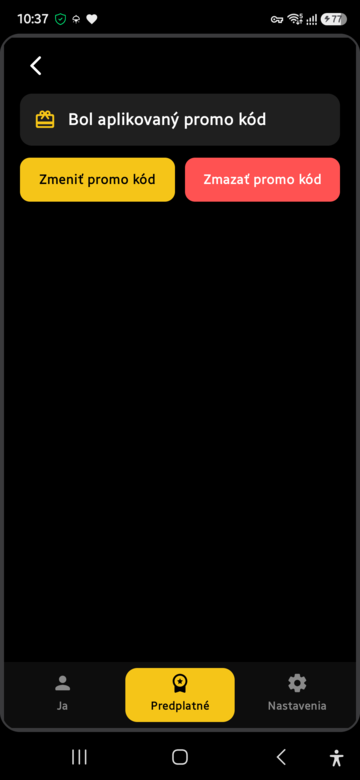
- Done — the screen now says the promo code is applied. From here you can change the code or delete it.
What the messages mean:
| Message | Meaning |
|---|---|
| Invalid code | typo, or the code does not exist |
| Code already used | someone else already claimed this code |
| Network error | could not verify the code — try again later |
Codes are checked globally, so a used code cannot be activated by another person. Your own device is remembered: if you delete the code, or reinstall the app on the same device, you can activate the very same code again — nobody can steal it from you in the meantime.
21. Ride sharing — ride requests
The Ride sharing tab arranges lifts between people nearby. It has four sub-tabs at the top:
- Order (taxi icon) — current ride requests nearby. Cancelled, finished and expired requests are never listed here.
- Successful (check mark) — finished and running rides.
- Cancelled (cross) — rides cancelled by you or the other side.
- Expired (hourglass) — requests whose departure time passed with no driver.
A request row shows the requester's blurred photo, From/To, departure time, distance to the pickup point and the requester's rating. Tap a row to open the route map; on someone else's request you offer the lift from that map. The yellow + creates a new request (from, to, time, seats). Your own request has a trash icon.
In the history tabs every row carries a status badge (Active, Finished, Cancelled). A red cross cancels a confirmed ride. Your own request that is not running shows "Ask again" on the right — it posts a new request with the same route, departing now. Tapping an active ride opens navigation for the driver and a live map for the passenger; tapping a finished/cancelled ride opens its detail with rating and map.